
Before opening a support case, try the virtual assistant — it searches relevant articles and videos and delivers a direct answer in seconds, with links to its sources.
Getting Started
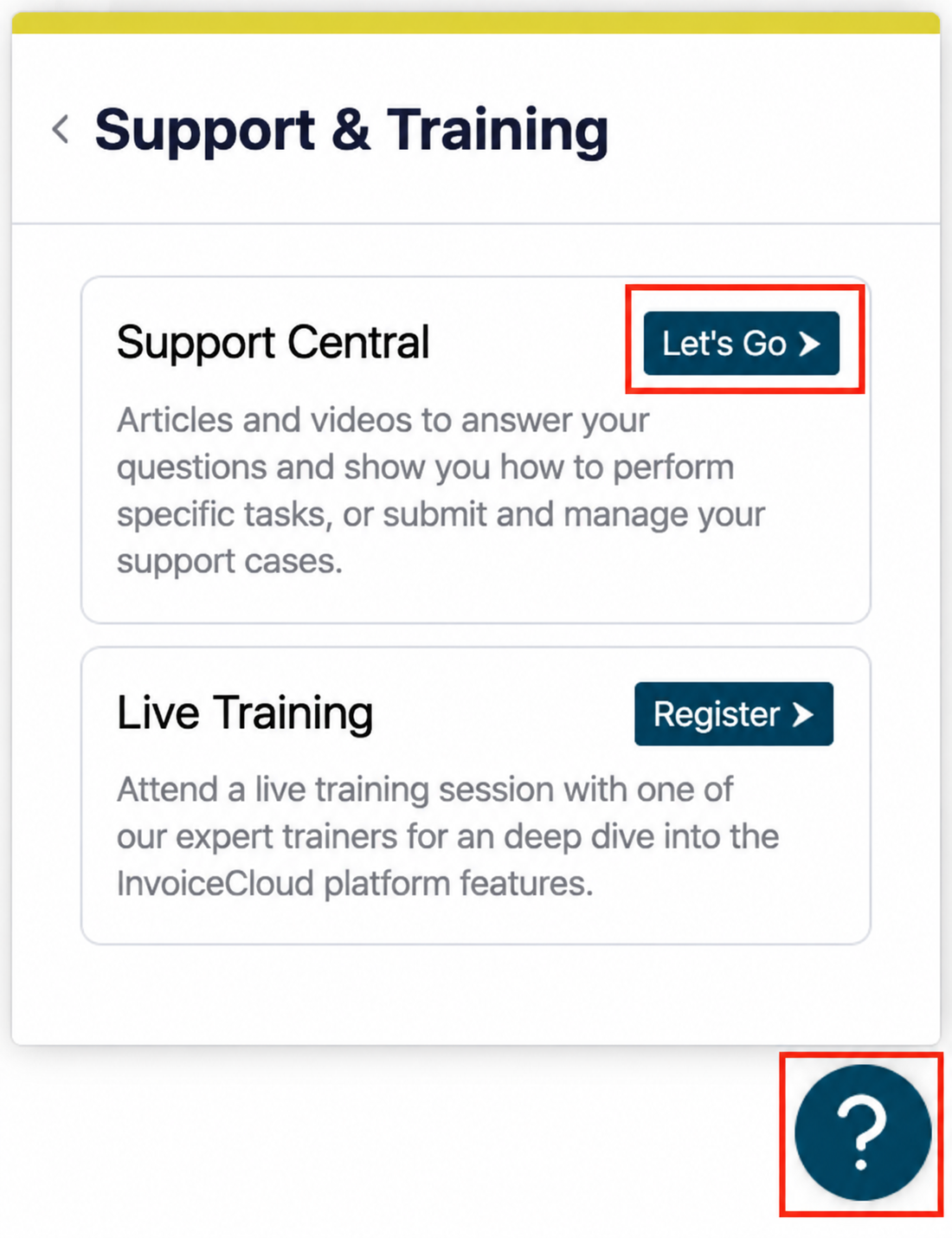
Open the Resource Center, click Support and Training, then click “Let’s Go” in the Support Central box.
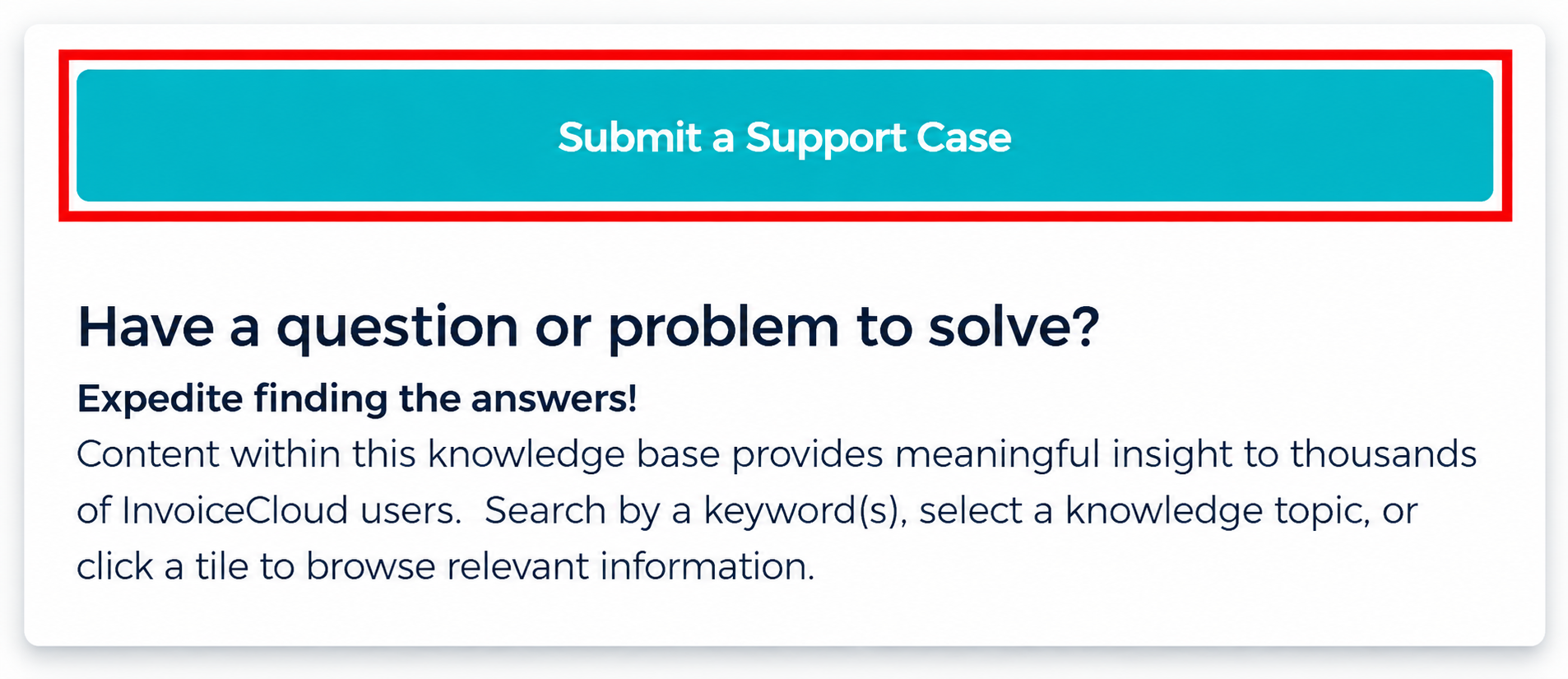
From there, click “Submit” a Support Case” and ask the virtual assistant one clear question: what you were trying to do, what happened, and any details that matter.
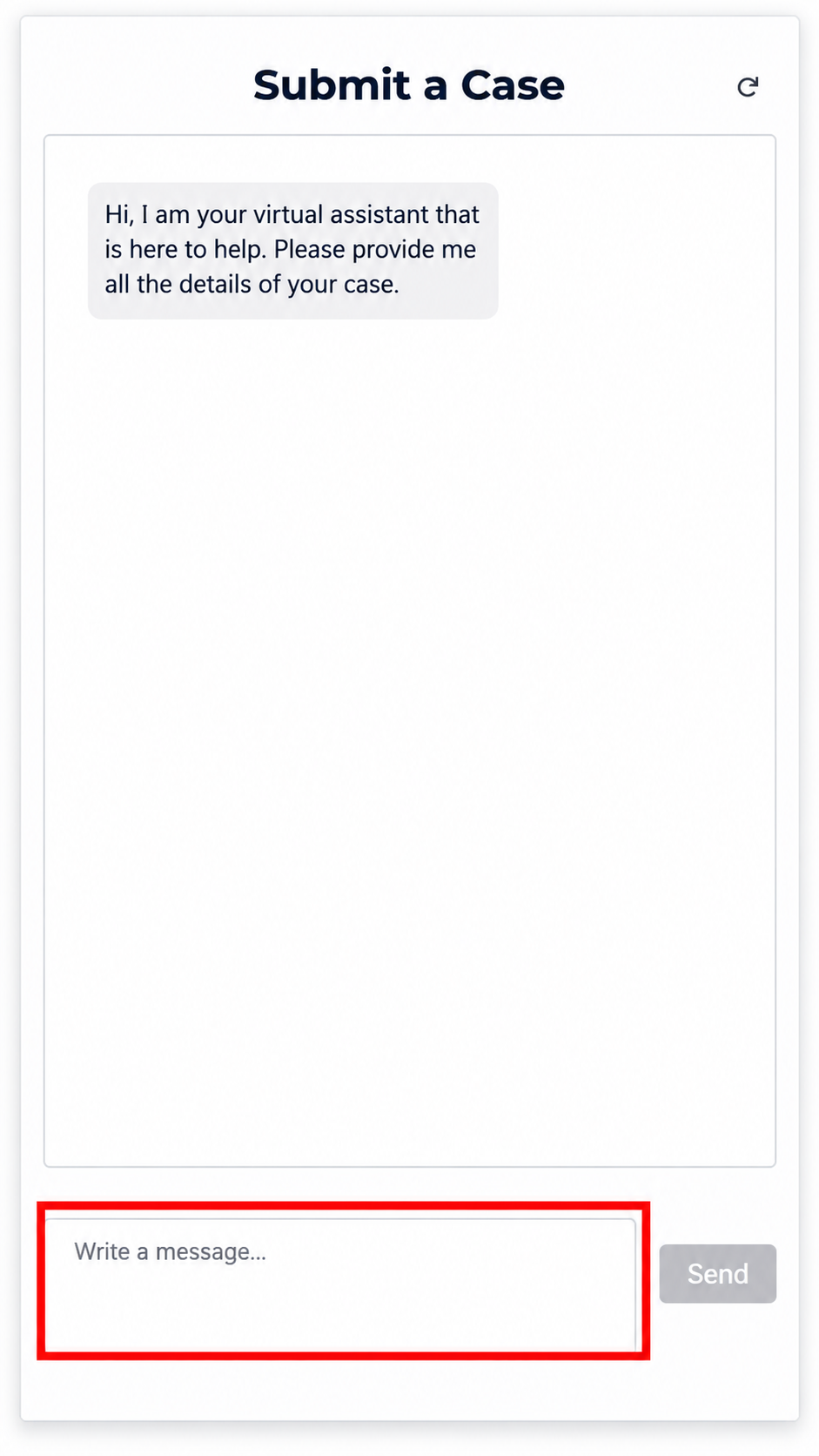
Didn’t quite hit the mark? Keep refining your question — no need to open a case just yet.
Popular Questions Our Users Ask
- How do I update a saved payment method?
- Why did my invoice file upload fail?
- How do I configure the daily payment report?
- Why did a Pay by Text message fail to send?
Tips for Better Results
Ask one question at a time, use the terms you see in the portal, and keep it short but complete.
Still Need Us? We’re Right There
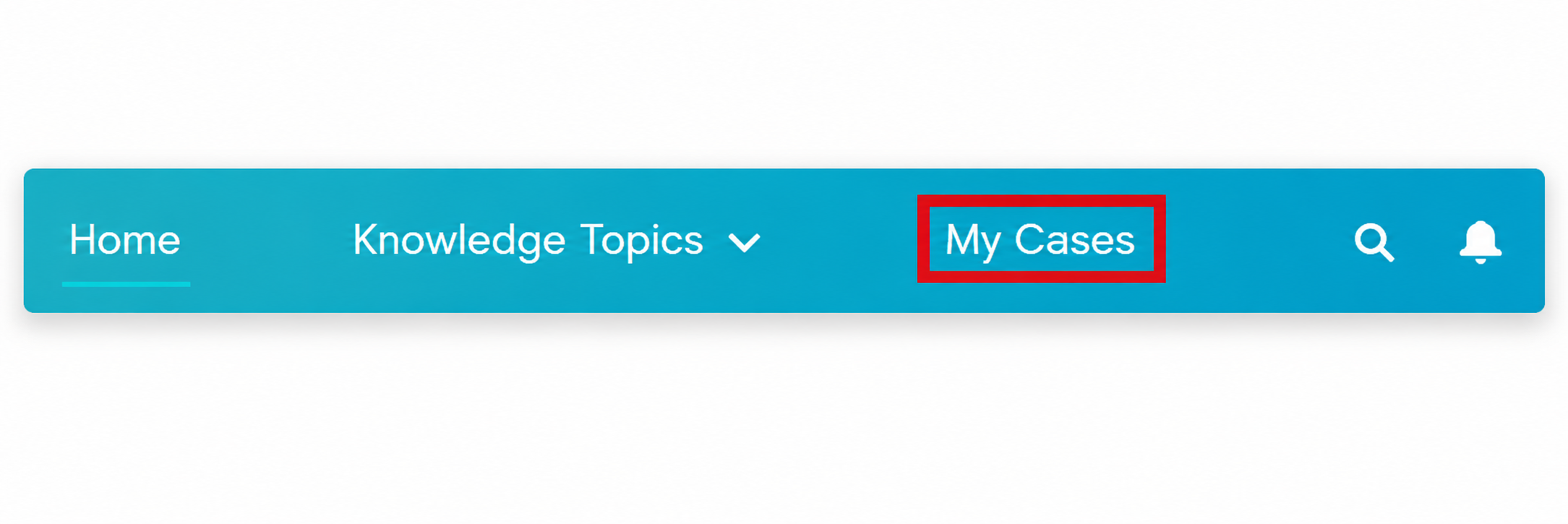
If the virtual assistant doesn’t solve it, click “No” and we’ll guide you through opening a case. Add a clear subject, pick a severity level, and attach anything helpful — screenshots, account numbers, file names, or whatever tells the story. Once submitted, track your case anytime from the My Cases button on the Support Central home page.